
How To Create Gmail Account Without Phone Number
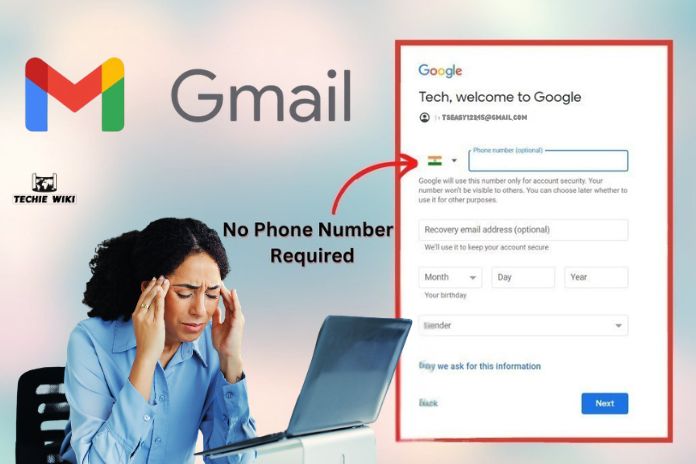
Google really wants your phone number when you sign up. It’s not mandatory, but the standard sign-up process prompts you toward giving one, and on some days it blocks the account entirely without it. For testing, I’ve set up a handful of Gmail accounts for others who didn’t want to hand over their contact number. Hence, there’s a reliable path around it, just not always on the first try.
Why Does Google Ask for a Phone Number?
It’s worth understanding the reason before you try to skip it. Accounts created without phone verification are sometimes subject to more frequent security checks, and it doubles as a recovery option if you ever get locked out. Google’s systems flag new accounts differently based on signals like your IP address, the device you’re using, and whether you’ve made other accounts recently. If those signals look suspicious, it asks for a number as a checkpoint. If they don’t, it sometimes lets you through without one.
That’s why the same steps can work for one person while failing for another. It’s not a fixed switch you can flip. It’s closer to a risk score.
How to Create a Gmail Account Without a Phone Number
- Use a browser in incognito or private mode, or a fresh browser profile: Existing cookies and account history can make Google more likely to ask for verification. Clearing cache improves your odds.
- Go to the Gmail sign-up page directly, Instead of accessing through the general Google account creation page. The link is accounts.google.com/signup. Some users report better luck reaching sign-up through the Gmail app itself rather than a browser, so it’s worth trying both if one doesn’t work.
- Fill in your name, then choose “Create your own Gmail address” instead of letting Google suggest one.
- Set a password.
- When you reach the phone number screen, look for a “Skip” link, usually below or beside the input field. It doesn’t always appear. If the “Skip” link is missing, it usually means that the sign-up flow will require verification for this attempt, and you may need to try again later from a different network.
- If skip is available, continue through the remaining steps, which typically asks for a recovery email (optional), birthday, and gender.
- Agree to the terms and finish setup. If you make it through without being asked for a number, the account is created and usable immediately.
What to Do If the “Skip” Option Doesn’t Appear
A few things tend to help on a retry:
- Switch networks: Mobile data, a different Wi-Fi network, or a VPN can change how Google scores the sign-up attempt. Public or shared IP addresses, including many VPNs, are more likely to trigger verification since they’re associated with higher account-creation volume.
- Wait and try again later: Google’s fraud detection isn’t static. An attempt that gets blocked in the morning may go through that evening from the same device.
- Try a different device or browser: A phone browser and a desktop browser can get different results for the same person on the same day.
- Avoid creating multiple accounts in quick succession: Multiple sign-up attempts close together, even from different networks, tend to raise scrutiny on all of them.
None of these guarantee success. Google may require phone verification regardless of what you try, especially if it has already flagged your IP or device for other reasons.
What You Give Up Without a Phone Number
A couple of trade-offs worth knowing before you commit to this route:
- Recovery gets harder: If you forget your password or get locked out, phone verification is one of Google’s fastest recovery methods. Without it, you’re relying on a recovery email address or security questions, which can mean a longer wait to get back in.
- Some Google services may still ask for a number later: Purchasing anything through Google Play, using Google Voice, or setting up 2-Step Verification will eventually prompt for a phone number, even if your original sign-up didn’t need one.
- The account may get flagged as higher risk: Accounts created without phone verification are sometimes subject to more frequent security checks, like being asked to verify a login from a new device more often.
If you’re setting up your account for long-term use rather than a one time use of the account, add a recovery email at minimum. It’s the one safety net you still have without a phone number attached.
Conclusion
Skipping phone verification on Gmail depends more on timing and signals than on any trick. A clean browser, a normal network, and a bit of patience if the first attempt gets blocked will get most people through eventually. Just go in knowing that account recovery will be weaker without a number attached, so set a recovery email the moment the account exists, before you need it.
Also Read: How To Delete A Page In Google Docs?
